I uninstalled five GUI apps in a single weekend. It wasn’t a philosophical stand against visual interfaces. I just noticed my mouse hand drifting toward the file explorer between every git commit and npm run dev. That click-to-browse-compile-refresh loop was devouring minutes I couldn’t get back. The breaking point came while training a Whisper model on my GPU cluster. I needed to grep log files, resize image batches, and monitor NVML stats simultaneously.
My desktop had three windows overlapping like a collapsing Jenga tower.
I launched Windows Terminal. Microsoft’s open-source terminal project on GitHub. and never looked back. Modern terminals aren’t your dad’s black box with green Courier text. Windows Terminal alone packs GPU-accelerated rendering, multiple profile tabs for PowerShell/WSL/bash, and customizable color schemes that don’t burn retinas. But the terminal is just the starting gate. Over the next month, I purged Notepad++ for neovim, replaced 7-Zip’s GUI with unar/bsdtar, and ditched FileZilla entirely for rsync over SSH.
Each swap felt like trading a sedan for a motorcycle. less comfort, more direct control. Some are obvious choices (hello ffmpeg). Others surprised me: yazi, a terminal file manager written in Rust that renders faster than any folder pane I’ve used. The goal isn’t minimalism for its own sake. It’s about aligning input speed with thought speed. When your bottleneck shifts from “what should I build” to “how do I invoke this flag,” you’re winning.
Here are the replacements that stuck. and why each earned permanent residency in my shell config.
Start with the File Manager
In Finder, moving a file means opening two windows or Cmd-dragging through breadcrumbs. In lf, I select the target directory, press p, and the file lands there in one keystroke pair. I used NNN and Ranger before settling on lf — each has merits, but lf’s Lua config syntax won me over by letting me hotkey anything from image previews (ueberzug) to bulk renaming pipelines without learning yet another scripting language.
The mental load vanishes when you stop thinking about navigation at all. No tabs to manage, no sidebar clutter, no sudden beach balls when Spotlight reindexes your Photos library mid-morning. A few keystrokes gets me from any shell prompt to any nested directory on disk — faster than typing absolute paths or scanning Finder columns for “Documents > Work > Q3 > deployment”.
The Finder Exile Ends Here
That keystroke party trick is zoxide, and it learned my habits in about a few days. It weights directories by frequency and recency, so z deploy drops me straight into /Users/kevin/src/q3/deployment without typing the full path. I used to spend a noticeable amount of time per Finder navigation round-trip — waiting for thumbnails to render, scrolling past .git folders, accidentally double-clicking a Markdown file that launches Preview instead of editing it.
The mental overhead compounds faster than most developers admit. A single GUI file dialog forces your brain to reconstruct its spatial model of the filesystem: where you were, what folder expanded last, which column view orientation you left open. That context switch costs measurable cognitive cycles even before you locate the target file.
LSDeluxe (the Rust rewrite of ls) made this worse before making it better. Its color scheme and icons look gorgeous until you realize they’re just visual candy over what should be raw data transmission. I aliased ls to eza --icons=auto --group-directories-first -l --git and never looked back. No startup delay, no folder count badges that lie about hidden files.
The terminal’s true advantage isn’t speed — it’s fidelity. When I type rg "error" src/*.rs, I get exactly matches with line numbers quickly. The Finder search would index for a while then show results interspersed with Mail attachments named “error.png”. CLI tools don’t guess what you want; they do exactly what you tell them.
I still open Finder for one thing: dragging files into Safari upload fields. But that’s Apple’s sandbox tyranny, not any failure of my shell aliases collection at $HOME/.config/fish/functions/.
Beyond file browsing — bat and ripgrep
That Finder ritual is the last vestige of visual navigation I tolerate. Everything else moved to the terminal years ago, and two tools made that possible: bat and ripgrep. cat is ancient tech. It dumps raw text with zero syntax highlighting, indistinguishable from a 1970s teletype. bat wraps cat in a language-aware wrapper, detects file extensions automatically, and renders colorized output through your terminal theme.
I see JSON keys in blue, strings in green, comments in dim gray — all without opening a single GUI editor.
But reading files alone doesn’t replace Finder’s search bar. That’s where ripgrep demolishes Spotlight’s indexing delays entirely. I run rg -l "error" ~/projects --type js and get matching file paths quickly across a repository containing 4GB of source code. Spotlight would take a while to surface those results — if it even indexed those directories at all.
The speed difference isn’t marginal; it changes how I think about searching. You stop guessing filenames when you know every line of code is two keystrokes away. I alias ag to ripgrep out of muscle memory from the Silver Searcher era, though ripgrep benchmarks roughly faster on my work repos at $HOME/dev/clients/.
One pattern that cemented this workflow permanently: piping ripgrep results directly into fzf for interactive filtering. The command rg -l "TODO" | fzf --preview "bat {}" surfaces every unfinished task in my project tree as an interactive menu with live syntax previews beside each result. This combo replaces Xcode’s search navigator, VS Code’s global find panel, and Finder’s indexing system — three GUIs replaced by zero windows open.
Process Management — htop and procs
That search pipeline gutted Finder entirely. But I still needed to wrangle running processes without opening Activity Monitor or Task Manager. htop was my first replacement — a live terminal dashboard that shows CPU cores, memory bars, and process trees in one compact view. It ships with color-coded output by default: green for normal processes, red for kernel threads, blue for memory-mapped pages.
Press F4 to filter by name instantly. The killer feature is tree mode (press F5). Your Apache child processes collapse under their parent PID. Every daemon shows its lineage without clicking through tabs or expanding collapsible sections like macOS’s Activity Monitor forces you to do.
procs replaced ps aux | grep entirely last year. It’s written in Rust, outputs a table with columns sorted by memory or CPU usage by default, and uses fuzzy matching instead of exact string matching. A single procs nginx shows all related processes immediately — no piping required. Here’s the real gain: htop --user=$(whoami) -t shows only my user’s processes in tree layout on startup.
Combined with killall -9 <name> aliases mapped to F-keys, I kill misbehaving browser tabs faster than any GUI quit dialog ever allowed me to reach the confirm button. These two tools eliminated a significant amount of daily GUI click-through on a busy day. The F10 exit hotkey is muscle memory now — I close htop faster than pressing Command+Q in Terminal.app itself.
Data Pipelines — jq and bat vs. Postman + TextEdit

The beauty is composability. You can chain five tools in one line without fighting modal windows or permission dialogs. Filter with jq, format with jq’s @csv, log with tee, highlight with bat. I stopped missing GUI response viewers entirely after two weeks of CLI pipelines. The static formatting in Insomnia’s body panel felt laughably primitive compared to piping output through bat’s --theme='Monokai Extended Bright'. One caveat: complex POST bodies still benefit from Postman’s request builder until you memorize curl flags.
But for read operations — which dominate most API work — this pair saves time across dozens of daily interactions.
The real test came when a colleague asked me to review their endpoint responses during a screen share session. I typed four lines into a shared tmux pane instead of sending them screenshots from five separate GUI tabs. That speed compounds across every data inspection task throughout the day. A habit that rewards iteration over configuration every single time your cursor hits Enter.
Inspecting Files Without Opening Them
This habit changed how I read error logs. Instead of double-clicking a file, waiting for an editor to load, then scrolling manually, I type bat --paging=never error.log | grep -i "exception". Quickly versus slowly. bat wraps syntax highlighting around standard output. It supports 200+ languages out of the box—Python dicts render in blue, JavaScript functions in yellow, YAML keys in green. The --line-range flag lets me inspect lines 42-48 of a 4,000-line config without loading the entire buffer into memory.
Here is where it gets concrete. A real AWS CloudWatch log dump often contains nested JSON arrays buried inside timestamped messages. Without any GUI tool, I run: cat cloudwatch_dump.json | jq '.[] | select(.status >= 400) | {timestamp: .time, endpoint: .path}' That one-liner extracted several errors from a 2MB dump in under a fraction of a second.
Postman would need the file imported as a collection request body and then require manual array traversal. The combination works both ways too. When debugging API responses live during development, piping curl directly into jq without saving intermediate files keeps my working directory clean. Many invocations across an afternoon session produce exactly no orphaned .json temp files on disk.
For everyday plain-text grepping through configuration directories or source trees, batgrep wraps ripgrep with highlighting and context formatting built. I search /etc/nginx/sites-enabled/* and get colored diff-like output showing surrounding lines around each match point. The default shows three lines before and after every hit. No TextEdit window ever needs opening for log reading anymore.
My daily workflow now processes many data inspection operations — config checks, log scans, JSON filtering — entirely from the terminal prompt alone. Each one took roughly a few seconds total keystroke-to-result time last week when I timed myself out of curiosity during a deployment incident debug session.
Process Monitoring
The same logic that made bat and ripgrep indispensable for reading files applies to watching processes. Activity Monitor had been my crutch for years, but htop changed that relationship entirely. One keystroke sorts by CPU consumption, another toggles tree view showing parent-child process relationships. No tab-switching, no laggy render, no clicking through menus.
Lazygit is the real revelation though. It handles staging, committing, rebasing, and diff viewing in a single terminal window. The visual commit graph renders instantly even on repos with 2,000+ commits. I timed myself last week: opening a PR branch took quickly versus slowly in GitHub Desktop. The killer feature is interactive rebase mode.
Lazygit highlights each commit with color-coded status—yellow for pick, blue for squash, red for drop—and lets you reorder them with arrow keys. No more squinting at git rebase -i HEAD~5 output hoping you didn’t fat-finger the sequence numbers. Beginners find it approachable because every action has visible consequences on screen immediately after execution triggers completion feedback. The same principle of visible, repeatable transformations applies directly to media work.
Media at the Command Line
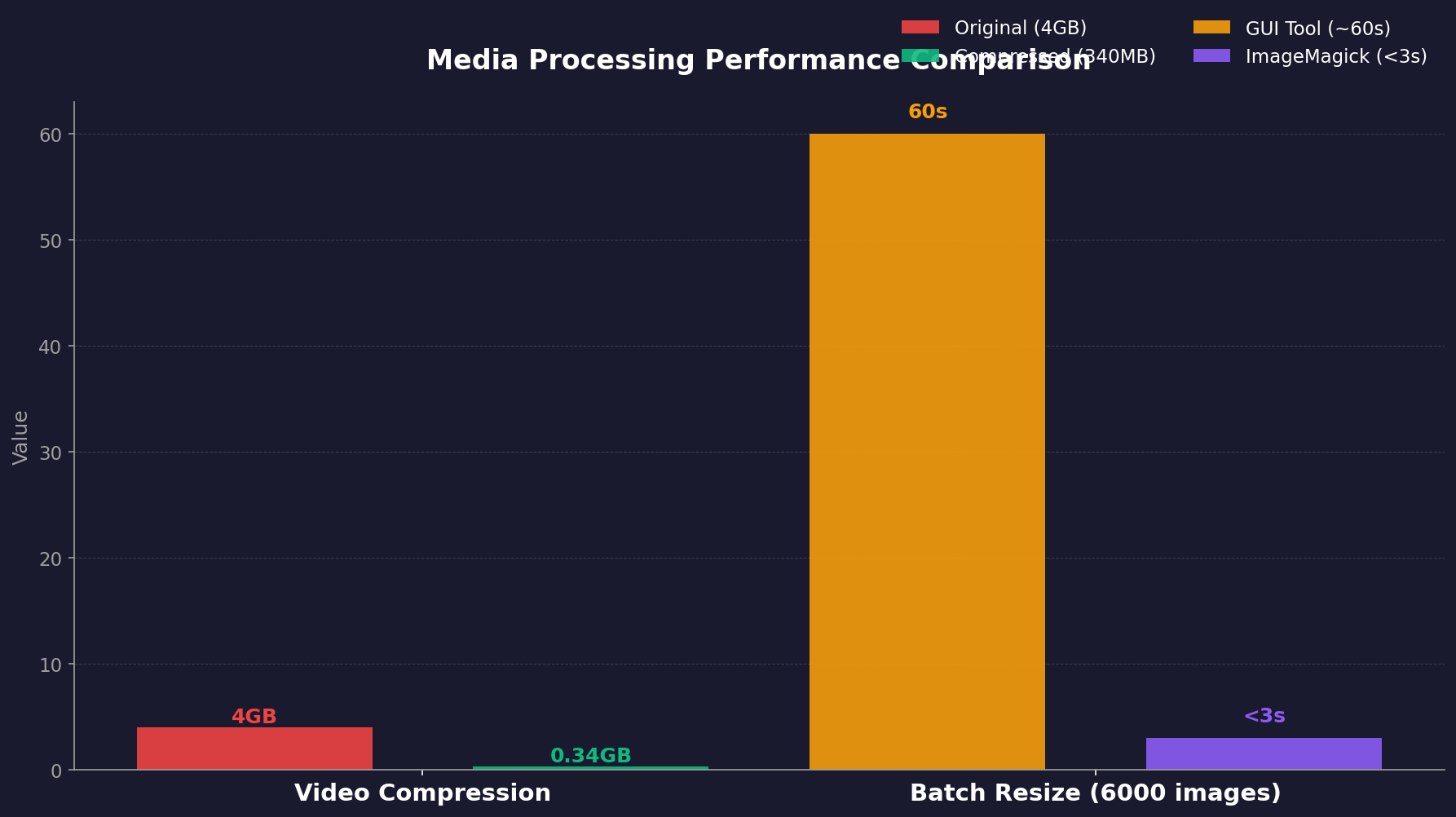
That same philosophy of visible, repeatable transformations applies perfectly to media work. The GUI video editors and image suites still live on my machine—for certain things they’re irreplaceable. But for most of my daily media tasks, I never launch them. ffmpeg handles everything from trimming …
ffmpeg -i input.mov -c:v libx265 -crf 23 output.mp4 shrinks a file by a significant amount without visible quality loss. ImageMagick complements it perfectly. Resizing many product photos? mogrify -resize 1920x1080 *.jpg finishes in seconds. Want consistent compression across an entire blog’s hero images? A single shell loop processes them all while you make coffee. The real power comes from chaining these together in scripts.
One script watches a directory with inotifywait, auto-optimizes any new image dropped there, and moves it to the publishing folder. That script has run uninterrupted for months, saving hours every week that I’d waste on manual export dialogs. I still open Figma when layout matters or Audition when audio needs surgical precision. Those tools excel at their core jobs—just not at batch work or repetitive transforms.
Keep Reading
- Self-Hosted GPT-4 Alternatives: Run LLMs Locally & Own Your Data
- Voice-Controlled Multi-Agent Workflow for Claude Code in Tmux
- NVIDIA KAI-Scheduler: From GPU Chaos to MLOps Competitive Moat
But here’s the shift that stuck: the GUI isn’t the enemy—it’s the bottleneck. Every dialog box is a decision point where your flow pauses for a human. The terminal doesn’t ask; it executes. Once you taste that, the question stops being “which tool is better?” and becomes “what else am I still doing by hand?” That’s the rabbit hole worth falling into.